
Windows 11
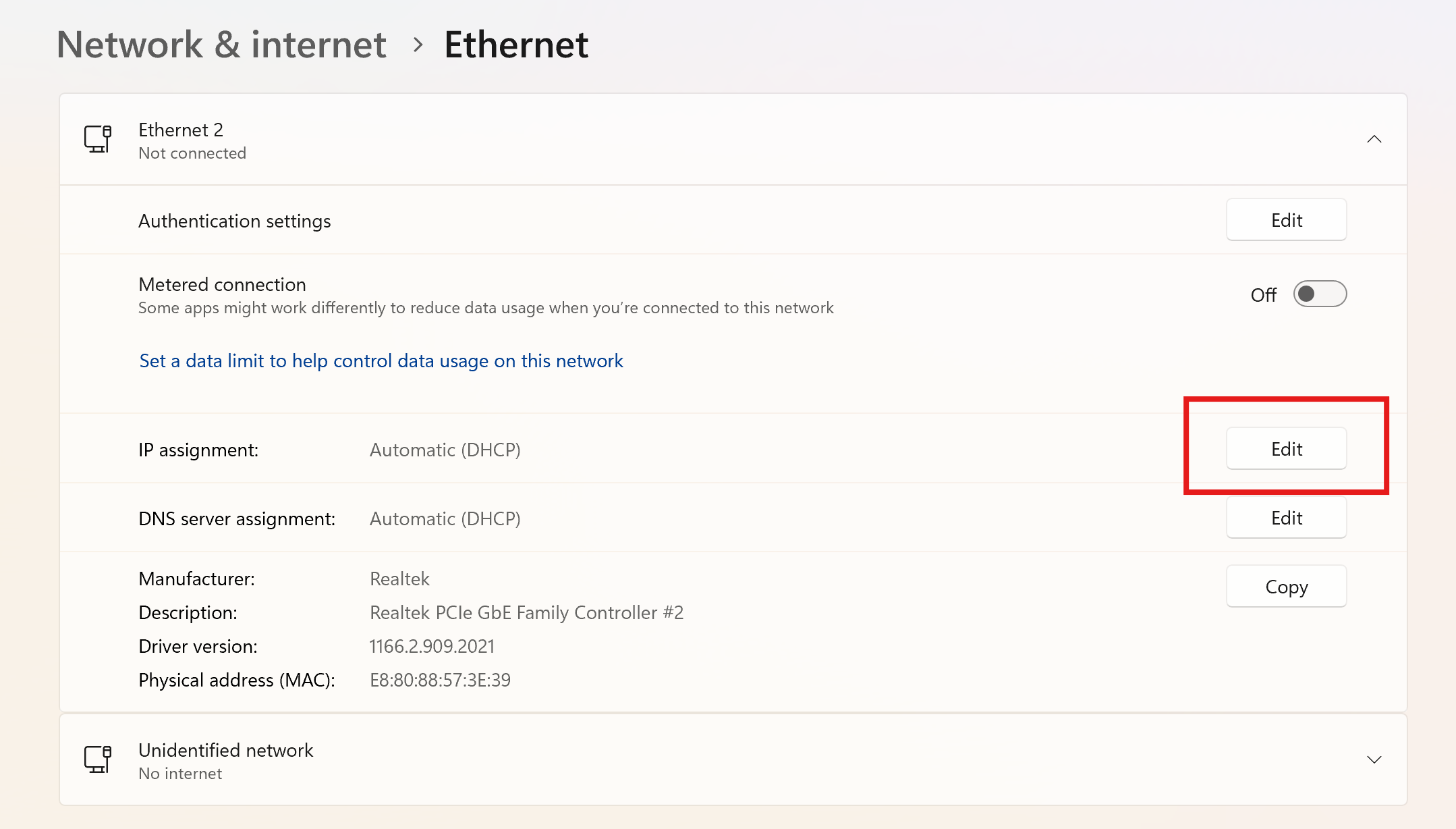
- Open the Settings app of Windows, go to "Network & Internet" and click on "Ethernet".
- Open the dropdown menu of your ethernet interface, and click on "Edit" next to "IP assignment"
- Set the "IP Settings" to Manual, and give your computer a fixed IP address in the same range as the MidTeQ PULSE. For example, if your MidTeQ PULSE has IP address 192.168.10.2, you should give your computer another IP address in the 192.168.10.x range. Make sure that the IP address you choose is not used by another device on the same network!
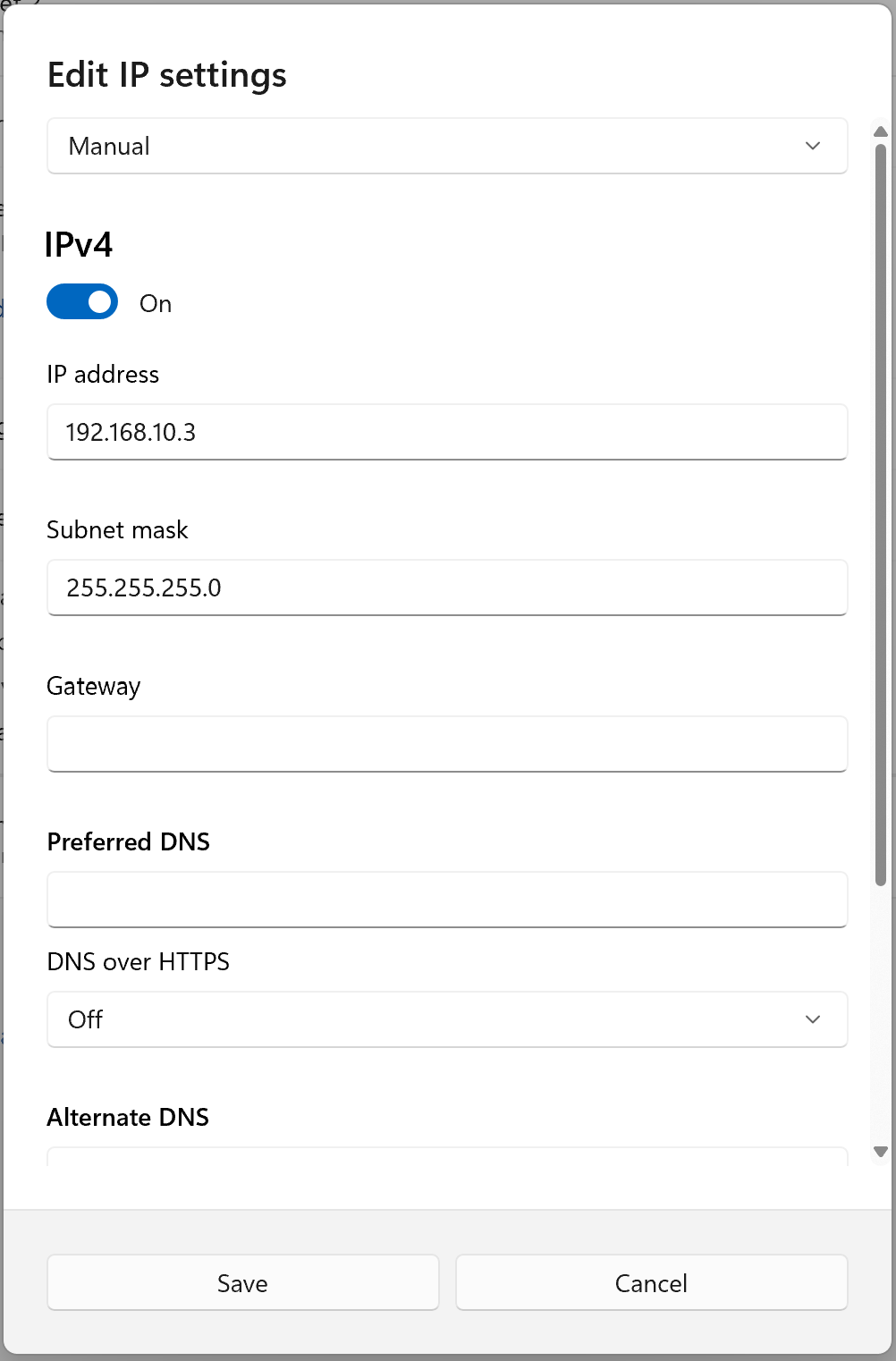
- Click save. You can now surf to the IP address of the MidTeQ PULSE in a web browser to access the commisioning interface.
- When you're done, don't forget to put your ethernet interface back on "DHCP".
Last updated December 10, 2025Edit this page